

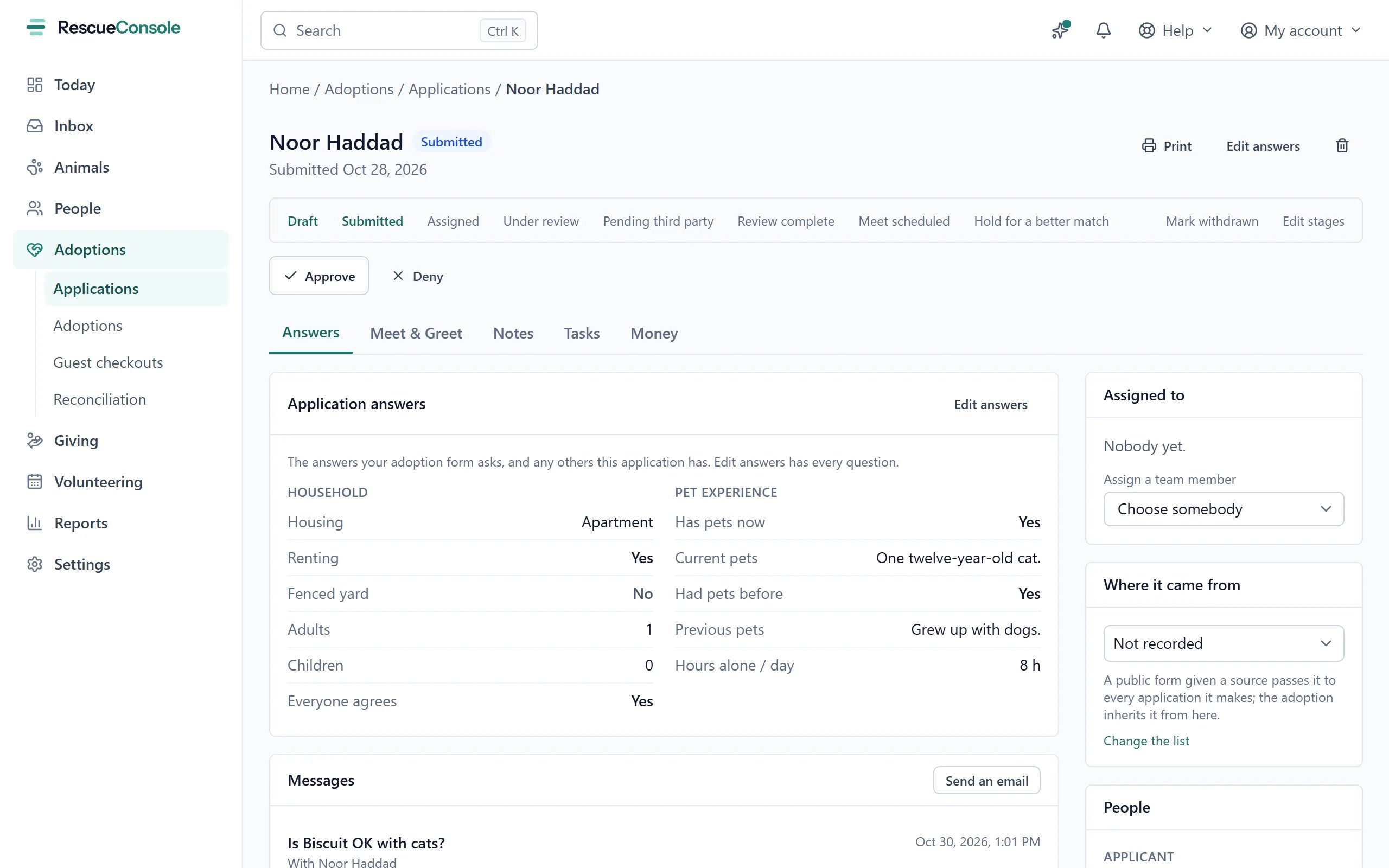
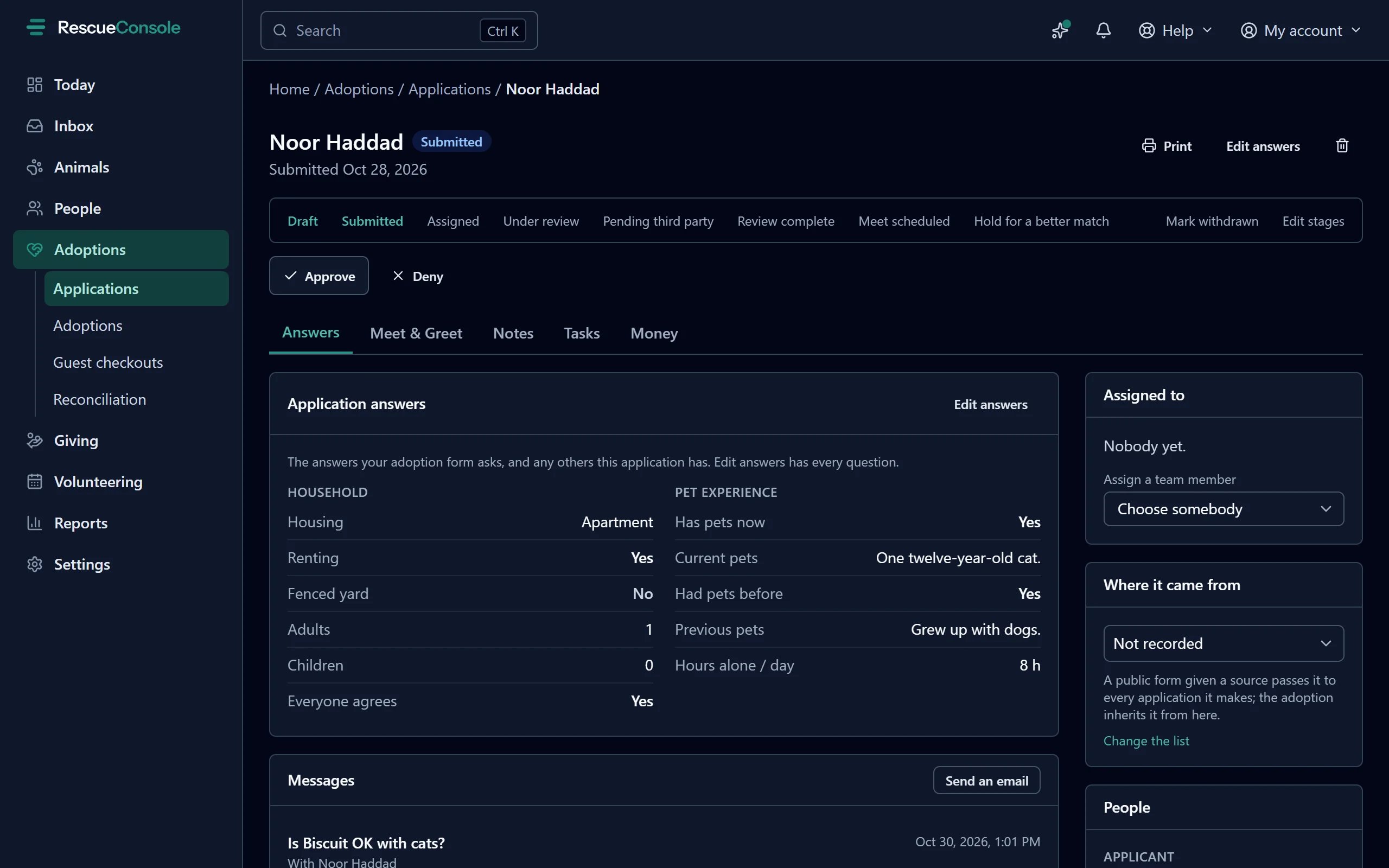
Noor Haddad's application: its stages across the top, the answers, and who it is assigned to.
The record has five tabs.
Beside the tabs are five cards: Assigned to, Where it came from, People, Pets applied for, and This home and these animals.
Answers
The answers are grouped as the form asks them.
The tab shows the answers your form asks: your published adoption form for an adoption application, your foster form for a foster application, or all of that kind’s forms while none is published. An answer the form does not ask still shows when the application has it, such as one typed in by hand or asked by the form before you changed it, and a group with nothing to show is left out. The card then says “The answers your adoption form asks, and any others this application has.” With no form of that kind, every answer shows. Edit answers always offers every question, and Add the application’s questions puts the rest on your form.
An application made from your adoption or foster form starts with the answers the form gave:
Applications made from a form before 13 October 2026 were filled in from their submissions the same way, wherever the answer was still empty; anything typed on the application since was kept. The rest of what the form asked, such as a doggy door, the size of the home, and your own questions, is listed under More from the form. People who cannot open submissions see the application’s answers without it.
A yes-or-no question has three answers: Yes, No and Not asked. Not asked means nobody has found out yet, which is different from no: a landlord nobody has called is not a landlord who said no. A text answer nobody filled in reads Not provided.
Messages
Below the answers, people whose role can See Communications find a Messages card: every email and text about this application, and with the applicant and the co-applicant on file, newest first, each listed once and marked About this application or With the person. Each opens the conversation in the inbox. It lists only the mailboxes you have access to, and a person’s conversations only if you can see People. Send an email opens the composer in a new window, addressed to the applicant and to the co-applicant once their record is linked (see People), from your default mailbox. A template chosen there is filled in from this application: the applicant’s name, the animals they applied for and your organization’s details. The email is kept with the application, so it is listed here once sent. Send an email needs Change on Communications.Editing the answers
Press Edit answers, on the Application answers card or at the top of the page. The answers open where they are, on the Answers tab. Every answer is optional.
Any custom fields your organization added for applications appear at the end. Press Save.
An application that is approved, denied or withdrawn can still have its answers corrected, and the card says so: “This application is decided. Correcting its answers leaves the decision as it is.” Its decision, status and stage, the meet and greet, and the notes on the decision stay as they were. Edit answers needs Change on Animals.
Meet and greet
The Meet & greet tab is where you arrange for the applicant to meet the animal.1
Save the meet
Press Save. Saving a date moves the application to Meet scheduled, and the meet appears on the calendar. Each person on the meet gets a task for that day, and everyone other than you is notified.
2
Mark it completed
After the meet, press Mark completed. Their tasks are marked done.
Notes
Notes your team writes while reviewing the application, newest first.Tasks
The Tasks tab has two cards.- Workflows: the checklists running on this application, on the form submission it was made from, and on the applicant. A checklist can start on its own when an application is received, approved or rejected; see Workflows.
- Tasks: tasks attached to this application, including the meet and greet tasks.
Money
The money of the adoption this application led to, kept on the application so the case is finished in one place. It is the same adoption record the Adoptions page lists, so a payment recorded here shows there, and the other way round. Before the contract is signed and the adoption recorded, the tab says No adoption recorded yet. For each adoption on the application (one per animal), a card shows:- How they said they would pay: the choice made when the contract was signed, such as Cash, Check, Card, with a payment link or a payment app, with what they were told.
- The finalize panel while the adoption is open, and once it is finalized the receipt number with the button to email the receipt.
- The ledger: the fee, what is paid, what is recorded but not yet verified, and the balance; recording a cash or check payment; the payment link; the ways to pay outside RescueConsole; and refunds.
- The receipt, once the adoption is finalized.