

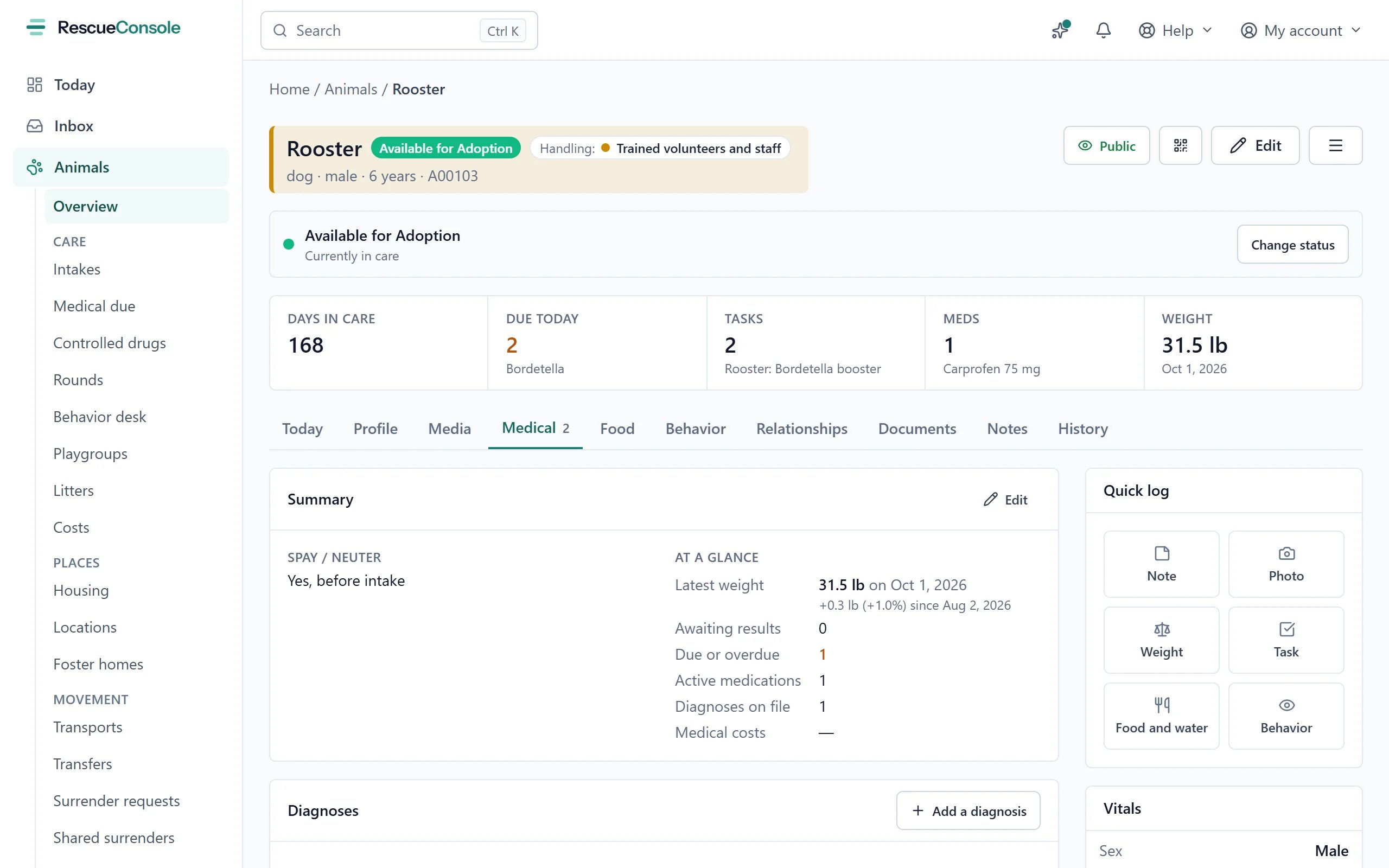
Rooster's Medical tab: the summary at the top, then each kind of record below it.
Diagnoses
Press Add a diagnosis.
Press Save diagnosis. A diagnosis can also be added from an exam (see Physical exams).
Diagnostic tests
1
Open the form
Press Add a test.
2
Say whether it has happened
Choose Already run or Schedule it.
3
Save it
Press Save test, or Schedule test. A scheduled test reads Scheduled for its date.
A test’s badge turns green for Normal or Negative and amber for Abnormal or Positive.
Entering results
1
Open the results
When results come back, press Enter results on the test (or Edit results to correct them).
2
Fill them in
Fill in Run on, Outcome, the test’s fields and Notes.
3
Save them
Press Save results.
Vaccines
1
Open the form
Press Add a vaccine.
2
Say whether it has happened
Choose Already given or Schedule it.
3
Save it
Press Save vaccine, or Schedule vaccine.
When you give a Next due, the next dose is saved as its own scheduled record, so it comes due on its own. If you filled in Every and Unit, it also repeats: marking it done schedules the one after. See Recurring items.
Treatments
1
Open the form
Press Add a treatment.
2
Say whether it has started
Choose Started or Schedule it.
3
Book a follow-up exam if you want one
Tick Schedule a follow-up exam to book a recheck at the same time. It asks for the date, time and length, who requested it, the Clinic, an Exam reason and Notes, and whether it is a Vet exam or a Tech exam. The follow-up is saved as its own scheduled exam.
4
Save it
Press Save treatment, or Schedule treatment.
Frequencies
Labels and the treatment sheet
Print a label on a treatment opens a label for the bottle or bag: the animal and its ID, the treatment, the dose and route, how often, the first and last day, and your rescue’s name. Choose Dymo 30252 (one at a time), Avery 5160 (30 a sheet) or Avery 5163 (10 a sheet), and for a sheet How many. Treatment sheet on a treatment, or Print the treatment sheet on the Medical due page, opens the day’s treatment courses by the hour (a treatment with no time of its own is given at your rescue’s times for its frequency, else spread evenly from 8 AM): a column for each hour a dose falls in, and at each dose a box to tick and a line to initial. Choose the Day, and a Room for the animals in it (and in the cages and runs inside it), or every animal. A course is on the sheet from the day it starts to its Last dose (or, when no last dose is written, the last of its Duration (days): ten days from the 15th ends on the 24th), on the days its frequency falls. A treatment with no frequency is a single dose, on the day it starts. Only animals in your care are on it: once an animal is adopted, transferred or has died, its courses come off the sheet.Physical exams
1
Open the form
Press Add an exam.
2
Say whether it has happened
Choose Already done or Schedule it. A scheduled exam keeps only the request; the findings are recorded when it is done.
3
Save it
Press Save exam, or Schedule exam.
An exam does more than save itself:
- A Weight on it is added to the weight history, noted with the exam’s name.
- A Temperature on it is shown in the temperature history, marked From the exam with its name. It stays the exam’s: change it on the exam.
- Each diagnosis made becomes a diagnosis on the record, dated the day of the exam.
- Schedule a follow-up exam and Schedule a tech exam each book a further exam as its own scheduled record.
Procedures and surgeries
Press Add a procedure. It starts on Schedule it, because a procedure is usually requested before it is done.
Press Add another procedure to this visit for each further procedure. Each becomes its own record with the same date and place.
When your catalog marks a procedure as a spay or neuter, the form says so, and once the procedure is done the animal’s Spay / neuter summary is set to Yes, in your care, with the date, the clinic and the vet.
Medications and preventatives
The Medical records card holds everything that does not have a card of its own. Press Add record.
Press Save record.
A record with a Performed on date is finished, and its Next due never comes due. To book an item, or to start one that repeats, leave Performed on empty and fill in Next due.
Weights
Weights are kept in grams and shown in your organization’s unit, set under Settings → Organization → General profile → Weight unit. You can enter a weight in lb, kg, oz or g whatever that unit is.Logging a weight
1
Open the form
On the record, press Weight under Quick log. The Log a weight form starts with the last reading, so a slip such as 55 for 5.5 stands out.
2
Fill it in
Fill in Weight, Unit and Recorded on.
3
Save it
Press Save.
Weighing many animals
1
Select the animals
To weigh a room of animals on a clinic day, select them on the Animals list and press Record weights….
2
Enter the weights
The Record weights panel asks Weighed on and Unit once, and has a row for each animal with its Weight. A row left empty is skipped.
3
Save them
Record N weights saves them all, or none: a weight of nothing, or an animal that is not yours, is refused by name and nothing is recorded.
Weight history
The Weight history card shows the change Since last reading and Since first reading, a chart with the lightest and heaviest marked, and a table of every reading with its Date, Weight and Change. The bin icon on a row deletes that reading straight away.Temperatures
A temperature is kept exactly as it was typed, to a tenth of a degree, in °F or °C: 101.2 °F reads back as 101.2 °F.Logging a temperature
1
Open the form
On the record, press Temperature under Quick log.
2
Fill it in
Fill in the Temperature and its unit, which starts as the unit of the animal’s last reading (or °F when your weights are in pounds, °C when they are in kilograms), and Taken, which starts at now. In Note, say how it was taken if not rectally: an ear or underarm thermometer reads lower.
3
Save it
Press Save. A reading that is not degrees to one decimal place, or that no body reads (outside 80.0 to 112.0 °F, or 26.0 to 45.0 °C), is refused, so 1012 for 101.2 is caught.
Temperature history
The latest temperature is on the record’s Vitals card. The Temperature history card on the Medical tab has a chart and a table of every reading, with when it was Taken, the Temperature and By whom. For a cat, a dog, a rabbit or a horse, the chart shades the usual rectal temperature for the species, from the Merck Veterinary Manual: a cat 100.5 to 102.5 °F (38.1 to 39.2 °C), a dog 99.5 to 102.5 °F (37.5 to 39.2 °C), a rabbit 101.5 to 104.2 °F (38.6 to 40.1 °C), a horse 99.0 to 100.8 °F (37.2 to 38.2 °C). A reading off it is drawn as an open circle and marked Above the usual range or Below the usual range in the table. Nothing else is done about it: an ear or underarm reading is often below. The chart is drawn in the unit of the latest reading, with any in the other unit converted for drawing only. A reading from an exam is marked From the exam and has no bin icon. The bin icon on a reading of its own deletes it straight away. Each one is in the animal’s History too.Food, water and output
What an animal eats, drinks and puts out, measured. An animal that eats or drinks much less than its own usual is often showing the first sign of illness, before anything else can be seen. Recording a measure1
Open the form
On the record, press Food and water under Quick log.
2
Choose the measure
Choose what you measured.
3
Save it
Add a note if you like and press Save. It goes on the animal’s day on its kennel page too.
Fosters record the same from their portal and volunteers from a shift (see My portal and My shifts); theirs are marked as theirs.
The graph
The Food, water and output card, below Weight history, draws each measure by day over the last 30 days: grams a day when it was weighed, otherwise the scale. For food and water, a dashed line is the animal’s usual: the average of the 14 days before the latest day measured, in the same terms as that day, once there are at least three days to take it from.
When the latest day’s food or water is under half of the usual, a warning above the graphs says so in words, for example Biscuit ate about 38% of the usual on October 19, 2026. Below the graphs are the latest measures with who took them; the bin icon deletes one recorded by mistake.